Website Migration Checklist: Phases and Mistakes
· DigifyNow
When you relaunch a website, most lost visitors and leads come from old URLs that now go nowhere. Work through the checklist in this order: record every existing URL and your baseline numbers, map each old URL to a new one with a permanent redirect, and test forms, tracking and the email records in DNS on a locked staging site. Remove the locks at go-live, then compare error pages and metrics against your baseline.
What belongs on a website migration checklist?
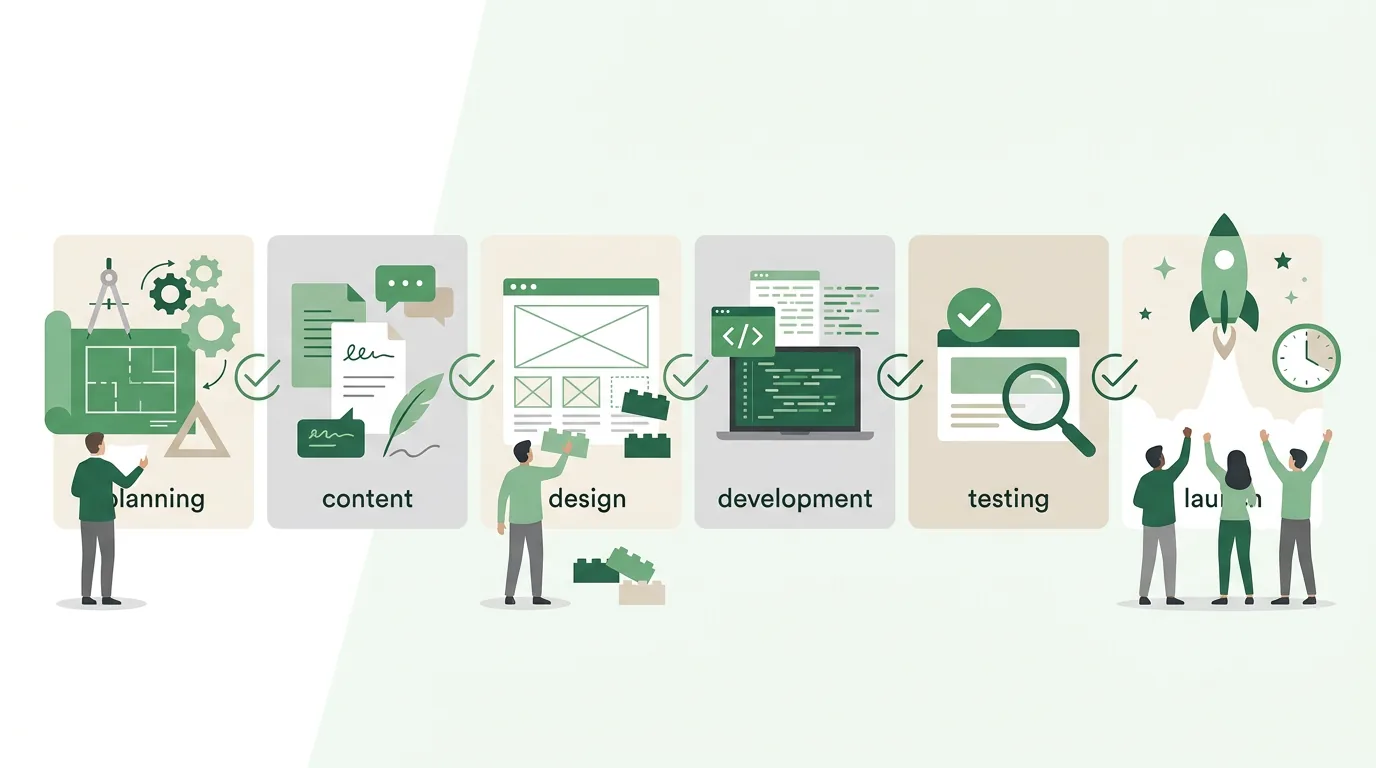
A useful website migration checklist isn't about the new design. It lists what has to survive the move from the old site to the new one. That means the URLs Google knows and other sites link to, the forms your leads come in through, the email inboxes on the same domain, and the metrics that will show you later whether something broke. At DigifyNow we split a relaunch or redesign into six phases. Each phase ends with something concrete you can check, and each comes with one mistake we see again and again on real projects.
| Phase | Deliverable at the end | Typical mistake |
|---|---|---|
| 1. Inventory | List of all URLs, baseline metrics, full backup | Only the menu pages get recorded, so PDFs and old campaign pages are missing |
| 2. Redirect plan | Redirect map: old URL → new URL | Every old URL is redirected to the homepage |
| 3. Build and migration | Content, forms and tracking running on the new site | Content added to the old site after the export gets lost |
| 4. Sign-off | Completed test checklist on the locked staging site | The staging site is publicly reachable and gets indexed |
| 5. Go-live | Domain and DNS switched over, locks removed | MX records forgotten during the DNS switch, so email goes down |
| 6. Review window | Comparison against the baseline, error pages fixed | Redirects deleted again after a few months |
Phase 1: Take inventory before the relaunch
Before anyone draws the first layout, you need a complete picture of the old site, and complete means more than what's in the menu. A crawler like Screaming Frog follows every internal link and lists every address it can reach. What it can't find are pages nothing links to anymore. You get those from the sitemap, from an export of your content management system and from the page reports in your analytics tool.
- Build the URL list: pages, blog posts, PDFs, images with their own URLs and landing pages from old campaigns.
- Save your baseline: visits and leads per page, clicks and search queries from Google Search Console, and the number of indexed pages. Export these numbers to a file, because the views inside the tools change after the move.
- Flag pages with external links: these URLs must get a matching redirect, no exceptions.
- Make a full backup of files and database, and check that you can actually restore it.
- Set a content freeze: from a fixed date on, nobody publishes anything new on the old site, or it will be missing later.
Phase 2: How do you set up redirects correctly?
The heart of every website redesign checklist is a table with two columns: old URL, new URL. For each row you set up a permanent redirect, the status code that tells browsers and search engines this page has moved for good. A temporary redirect, by contrast, says the old address is still the real one, and it has no place in a relaunch. The target should always be the new page with matching content. If you send large numbers of old URLs to the homepage, visitors don't find what they were looking for, and Google may treat those redirects like missing pages.
- Map one to one wherever a successor page exists. Where none exists, the closest category page beats the homepage.
- Content you're really dropping should deliberately return as removed or not found, rather than being bent toward some unrelated page.
- Avoid chains: point old redirects from earlier relaunches straight at the new target instead of routing them through several hops.
- Cover the variants: with and without www, http and https, with and without a trailing slash, upper and lower case.
- Keep the table as a test file. On go-live day you use it to check every row automatically.
If the relaunch also changes the platform, say moving from an old website builder to a different CMS, you'll have content, user accounts or store data to bring along as well. How to transfer and reconcile that kind of data cleanly is covered in our article on data migration with strategies and a checklist.
Phase 3: Migrate content, forms and tracking
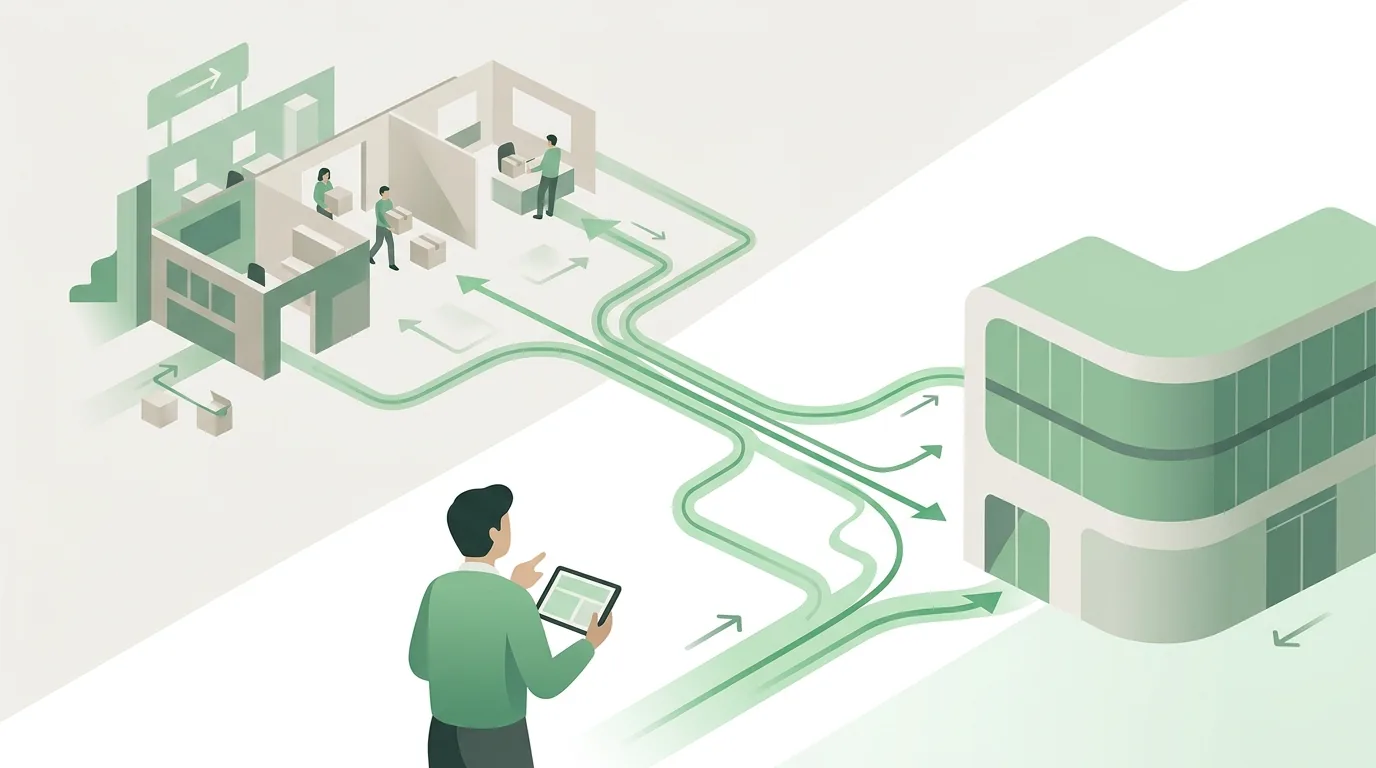
This is the phase where the new site gets built. For the checklist, what matters are the parts you can't see in a design mockup. For the pages that have been bringing in visitors, you either carry over the page titles and meta descriptions on purpose or replace them for a stated reason, but you never just leave them blank. Heading structure, image alt text and internal links move over too.
Forms are the most common silent failure. A form can look fine on the new site and still deliver nothing, because the new server sends email differently or the recipient address still points to a test inbox. So every form gets tested with a real submission, all the way to the inbox. The same goes for integrations, for example when leads flow straight into a CRM. Tracking and the consent banner have to be set up again. Whether your privacy policy and legal notices still fit the new technology should be reviewed by someone with a legal mandate, not by the developer on the side. For pages built specifically to collect leads from ads, it's worth taking a separate look at how to optimize a landing page so that the tracking point and the form line up.
Phase 4: Sign-off on the staging site
Until go-live, the new site runs on a staging environment. Lock it with password protection, not just with robots.txt or a noindex tag. Robots.txt keeps search engines from crawling, but it doesn't stop a linked URL from showing up in the index. A noindex tag, on the other hand, often gets copied over to the live site, and then the new site disappears from search right after launch.
- Run the redirect map against the staging site: every old URL lands on the right target, as a permanent redirect and without a chain.
- Test every form with a real submission, including the confirmation email to the sender.
- Check the mobile layout on real devices, not just in a shrunk browser window.
- Search canonical tags, the sitemap and internal links for absolute URLs pointing to the staging site. At launch they must point to the live domain.
- Measure load times of the most important pages and compare them with the old site.
- Document the sign-off in writing: who checked which item, and when.
Phase 5: What happens on go-live day
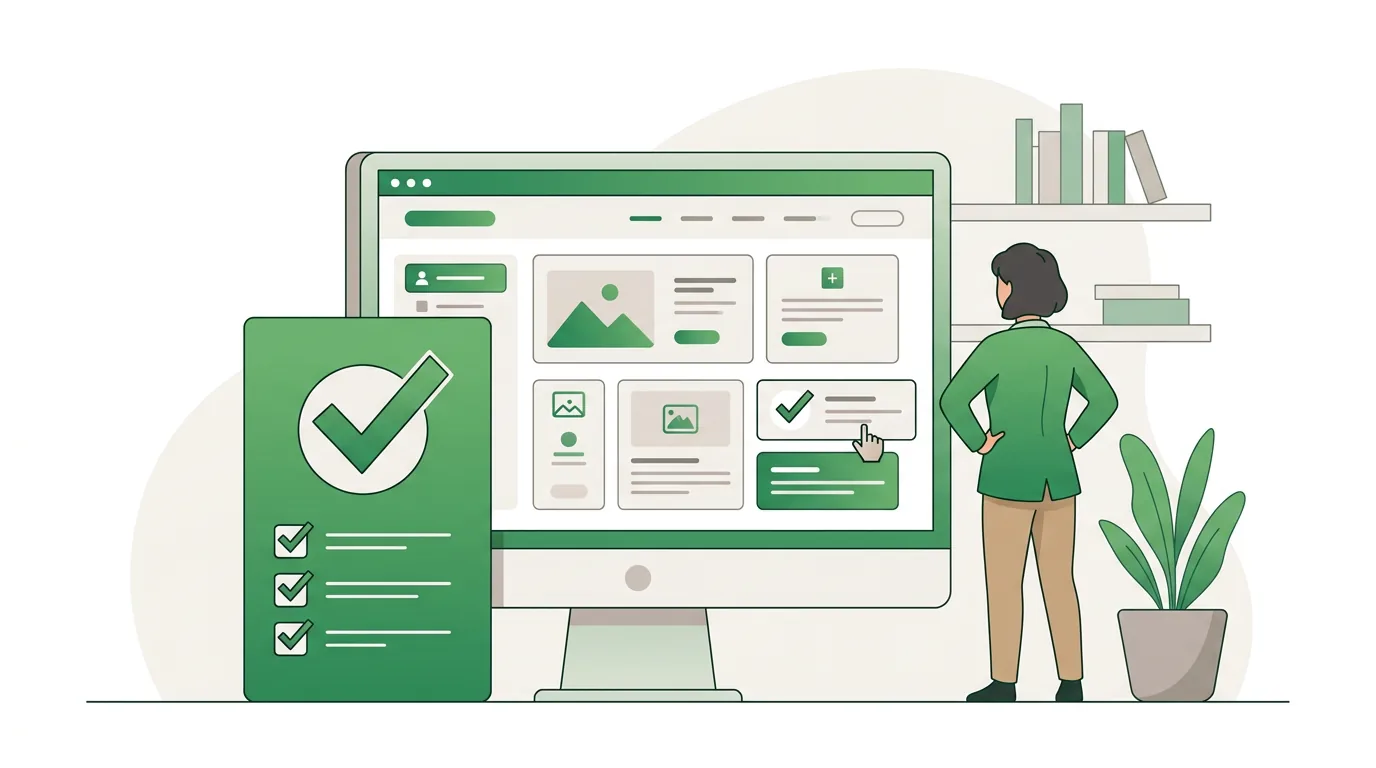
On switchover day, the domain gets pointed at the new site. If your DNS records are also moving to a new provider, check the MX records beforehand. They determine where email for your domain gets delivered. If they aren't carried over during the move, mail stops arriving, and often nobody notices for hours. The same applies to the TXT records your email provider needs for sending. Lower the time to live (TTL) on the affected records a few days ahead. That way changes take effect faster, and you can roll back faster in an emergency.
- Remove password protection and noindex, and check the robots.txt on the live site.
- Check the redirect map against the live domain.
- Submit the new sitemap in Google Search Console.
- Send a test form and confirm it arrives.
- Check tracking: are page views and leads showing up in your analytics tool?
- Don't delete the old site. Keep it as a backup until the review window is over.
Phase 6: The review window after go-live
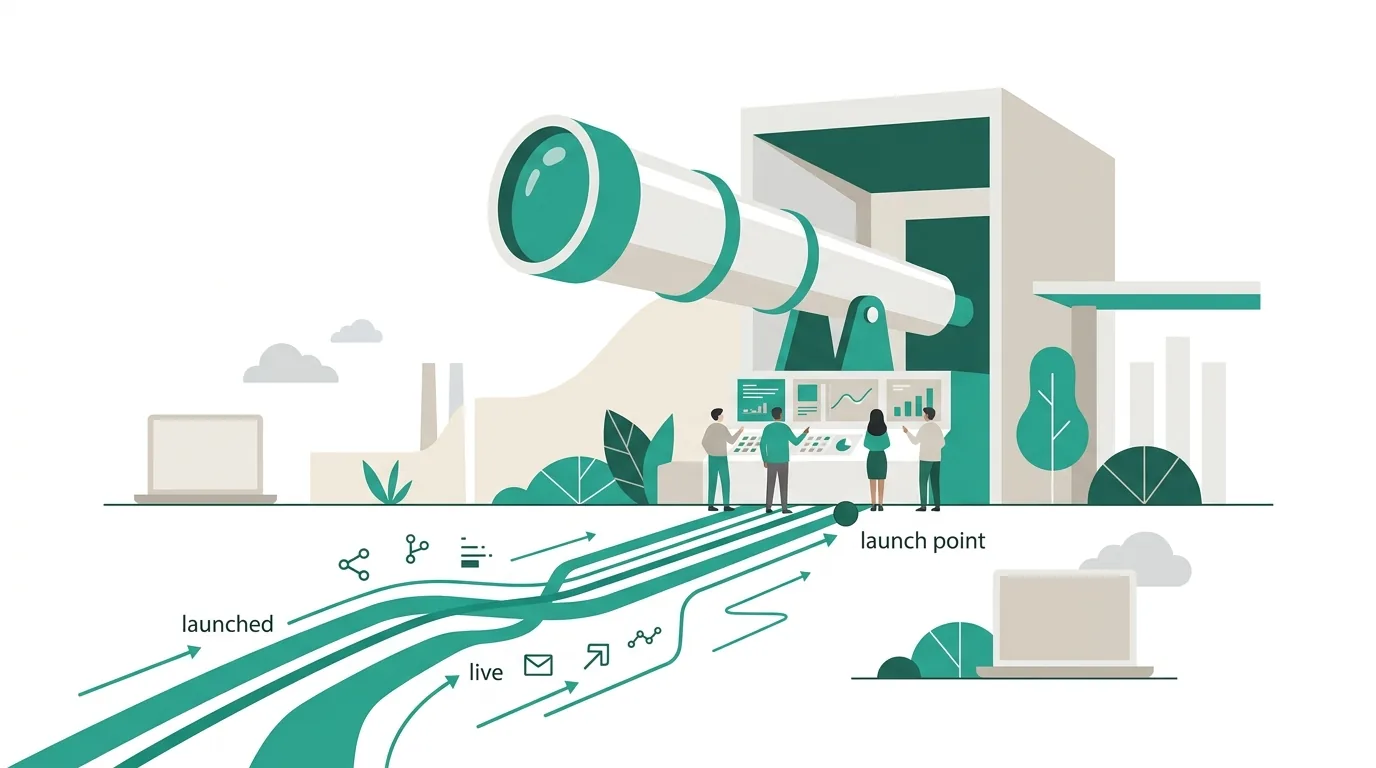
After launch, search engines process the new URLs gradually. Rankings and clicks will fluctuate during this time, and that's normal. What matters is whether they settle back down. To see that, compare the baseline from your inventory with the current numbers every week, page by page. If one particular page drops sharply, the cause is usually on that page itself: a wrong redirect, missing content or a changed title.
Go through the error pages. The page indexing report in Search Console and your server logs show URLs reported as not found. Each one that has external links or visits gets a redirect after the fact. And don't delete redirects after a few months just to tidy up the system. External links and bookmarks pointing to old URLs stick around, and without a redirect they lead nowhere.
When is a relaunch the wrong answer?
Not every disappointing website needs a relaunch. If only the copy is outdated, revising the content in the existing system is enough. If a single service page isn't generating leads, you get more out of rebuilding and testing that one page than out of rebuilding the whole site, because after a full relaunch it's almost impossible to tell which change had which effect. A relaunch makes sense when the system itself is the problem: no more security updates, no mobile layout, or every change needs a developer. If you can go step by step, for example moving the blog first and the service pages after that, you keep the risk of each step smaller.
What drives the cost of a website relaunch?
There's no flat price, because the effort depends on a handful of factors that vary a lot from site to site. One is the number of page types, meaning distinct templates, which matters more than the number of pages. Then there's whether content is moved by hand or automatically, how many URLs need to go into the redirect map, which integrations are connected (CRM, booking system, store, newsletter), whether the site has multiple languages, and who handles hosting, updates and backups afterward. You only get a reliable number once these points are known from the inventory. If you're looking for a provider, our article on how to find and compare a web designer has questions for the first conversation.

When outside help pays off
Outside help pays off mainly when the old site has lots of URLs with visitors or external links, when you're switching platforms at the same time, or when forms and integrations feed directly into your processes. For a small brochure site without meaningful search traffic, the checklist on its own is often enough. DigifyNow handles concept, build, redirects and ongoing operation if you want to have your new website built. Have your logins for domain, DNS, hosting and Search Console ready, along with a list of your most important pages and your goals for the new site. In a free, no-obligation assessment of your project, we work out which phases will take real effort in your case.
Frequently asked questions
How long does a website relaunch take?
The timeline depends less on the design than on the inventory, the content migration and the sign-off. A small site with only a few templates moves over much faster than a site with many URLs, several languages and CRM integrations. On top of that, plan a review window after go-live in which you compare error pages and metrics against your baseline every week.
Will I lose my Google rankings when I relaunch my website?
Fluctuations after launch are normal, because Google first has to process the new URLs. Lasting losses usually come from missing or wrong redirects, deleted content, changed page titles or a forgotten noindex tag. A complete redirect map with permanent redirects, plus a comparison against your saved baseline, makes these mistakes visible. Nobody can guarantee rankings.
What's the difference between a permanent and a temporary redirect?
A permanent redirect says the page has moved and search engines should use the new URL from now on. A temporary redirect says the old URL is still the real one and is only pointing elsewhere for the moment. In a relaunch, pages that have moved get the permanent version. The temporary one fits cases like a page briefly pointing somewhere else during maintenance.
Do I have to delete the old website after the relaunch?
No, not right away. Keep a full backup of files and database until the review window after go-live is over. If content or images turn out to be missing, you restore them from it. The redirects from old to new URLs, however, stay in place permanently, because external links and bookmarks keep pointing to the old URLs.