Data Migration: Strategies, Checklist, Example
· DigifyNow
A data migration has three steps. First, export the data from the legacy system. Then use a mapping table to transform it into the new system's structure and load it. Before that, do at least one trial run on a copy of the real data. Afterward, compare record counts and totals. Only when they match do you freeze the legacy system on cutover day. Don't delete it, because tax-relevant historical data has to be retained.
What is data migration? Definition and how it differs from backups and integrations
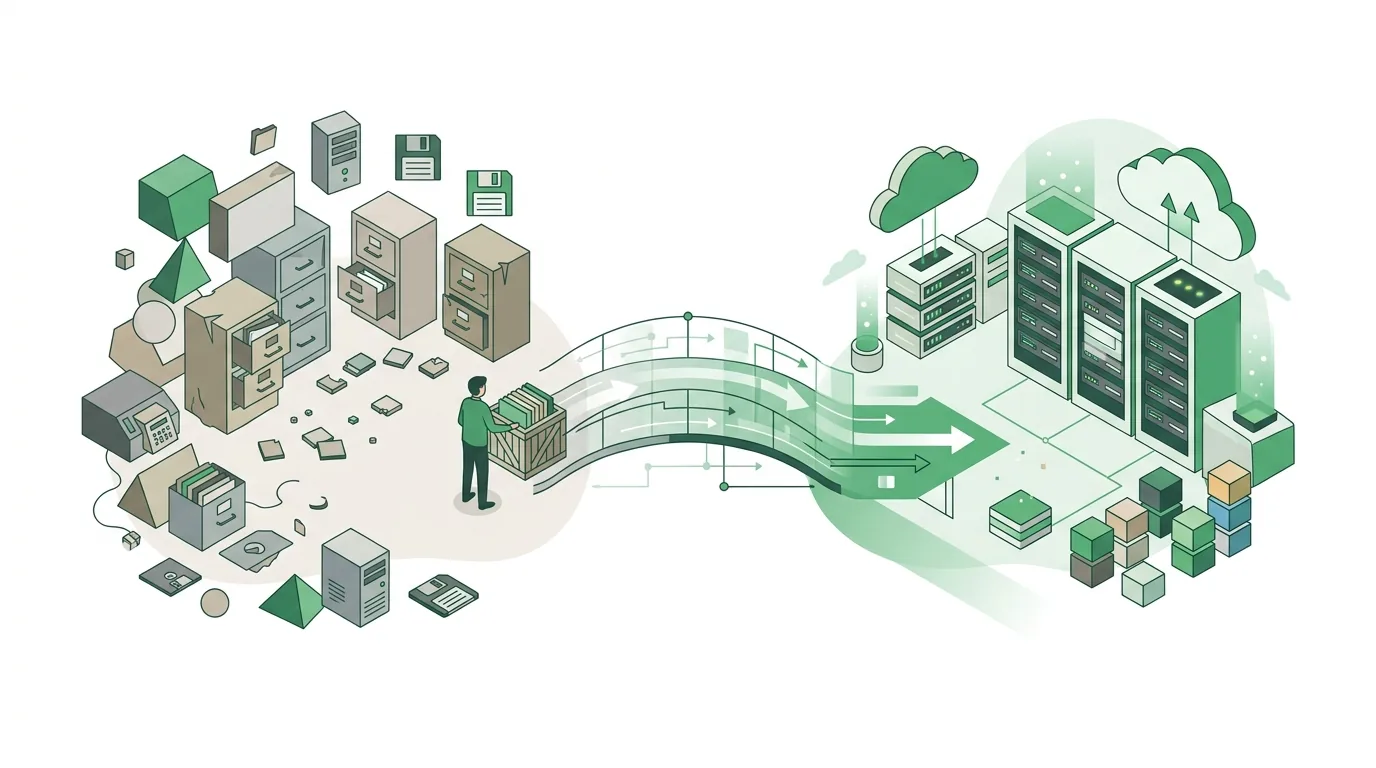
In a data migration, data is moved once from a source system to a target system. Almost always, the data has to be restructured along the way because the two systems store it differently. Technically, there are three steps, known as ETL. Extract means pulling the data out of the legacy system, for example as a CSV file or directly through a database query. Transform means mapping fields, converting formats and merging duplicates. Load means bringing the data into the new system through its import function or an API. Two things often get confused with migration. A backup copies data unchanged so you can restore it later. It doesn't change the structure at all. An API integration keeps two systems in sync on an ongoing basis, with both of them staying in use. A migration, by contrast, has an end: afterward, the new system is the system of record. The old one is shut down or kept in read-only mode. At DigifyNow, a migration is almost always part of a larger project. Anyone getting custom software or a new back office wants to bring their customers, orders and documents over from the old tool.
What data migration strategies are there?
In practice there are three strategies. They differ in how long the old and the new system run side by side. Which one fits depends less on the volume of data. What matters more is how tightly the different data areas are linked to each other and how expensive a day of downtime would be.
| Strategy | How it works | Fits when | What goes wrong |
|---|---|---|---|
| Big bang (cutover date) | All data is moved at once. Afterward, the legacy system switches to read-only mode. | The data areas are tightly linked and the move fits into a weekend. | An error hits everyone at once. Without a prepared rollback path, operations grind to a halt on Monday. |
| Phased (in stages) | Data moves by area, location or module, for example contacts first and then orders. | The areas can be cleanly separated. | During the transition, data has to flow back and forth between two systems. That requires a temporary interface. |
| Parallel run | Both systems run at the same time for a while and the results are compared. | The new system first has to prove itself on critical processes such as billing. | Everything is entered twice. After a few days, staff usually maintain only one of the two systems, and the comparison loses its value. |
For most small and mid-sized businesses, we recommend a big bang with a thorough trial run. A parallel run sounds safe. But it often fails because nobody has time for double data entry in day-to-day work.
Data migration checklist: what needs to be settled before the move?
We work through these six points in the same order in every migration project. Each point produces a result you can check. A mere feeling that everything will be fine isn't enough.
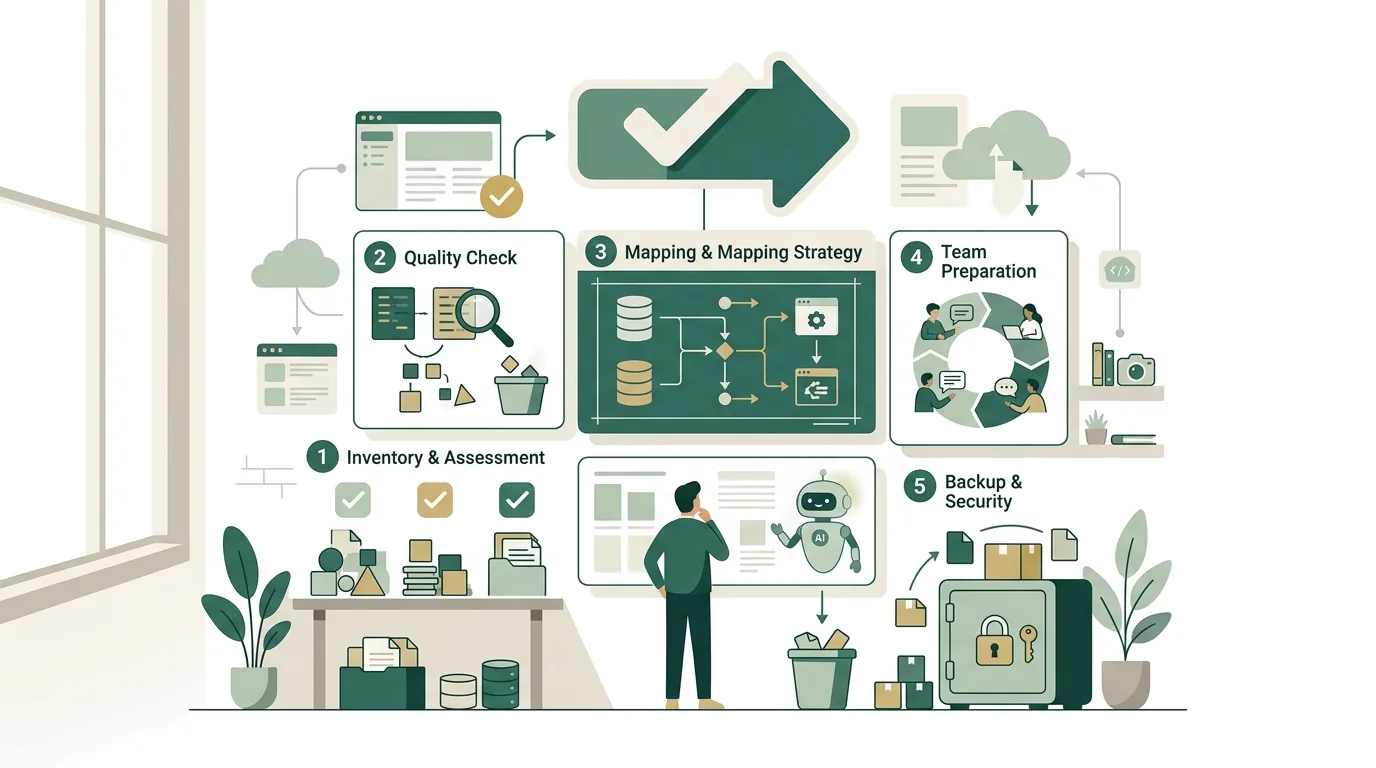
- Take inventory: Which tables or files exist, and how many records does each contain? Which character encoding does the legacy system use (an older Windows code page or Unicode), and which export format does it offer?
- Build a mapping table: For every source field, record the target field and the transformation rule, plus whether it's a required field. Fields with no target are explicitly marked as 'dropped'.
- Clean up before the move: Merge duplicates and remove orphaned records that aren't linked to anything. Decide together with the business team which historical data won't come along at all.
- Run a trial migration: At least one complete run with a copy of the real data in a test environment. Made-up test data won't surface the real edge cases.
- Reconcile: Compare record counts per table and calculate totals, for example across all open invoice amounts. Spot checks are done by the people who work with the data every day.
- Set the cutover date and a way back: On cutover day, the legacy system becomes read-only. There is a documented rollback plan, and the legacy system is not deleted.
Point 3 is the one skipped most often. Before the move, cleanup takes hours. Afterward, it takes weeks, because by then the errors have spread throughout the entire new system.
Why do data migrations fail in practice?
A migration rarely fails because of volume. Most of the time it's small formatting details that nobody notices at first glance at the export file. We run into these six mistakes again and again:
- Broken special characters: The legacy system exports in an older Windows code page, but the import expects Unicode, or the other way around. Suddenly 'Müller' turns into 'Müller'. This pattern appears when the two bytes Unicode uses to store the ü are read as two separate characters of the old code page. The cause is an encoding that wasn't specified during export.
- Swapped dates: Day and month trade places because a tool assumes the American month-before-day order, while the source data puts the day first. The tricky part is that the import reports no error as long as the day would also be valid as a month. Only for later days in the month does it abort or produce nonsense. The international year-month-day notation works well as an intermediate format because it can't be misread in either direction.
- Excel changes values: Leading zeros are dropped, so German postal codes from Saxony and Thuringia that start with a zero lose a digit. On top of that, Excel only calculates with a limited number of significant digits and replaces the rest of very long numbers with zeros. Long customer or item numbers become useless. The fix: import such columns explicitly as text when opening the file, or don't open the file in Excel at all.
- Broken links between records: The target system assigns new IDs, and orders lose their customer. You can avoid this by carrying the old ID along in a separate field.
- Truncated text: The target field is shorter than the source field, and the import cuts it off without warning. You can check this in advance by finding the longest string per field in the export and comparing it with the field length in the target.
- Free text with mixed content: The 'Notes' field contains phone number, contact person and payment terms all jumbled together. No script separates that reliably; a person has to decide.
Almost all of these errors show up in the trial run if you reconcile the numbers afterward. Without a trial run, you only notice them when a customer receives a wrong invoice.
What happens to legacy data that has to be retained?
With tax-relevant data, you can't simply shut down the old system after the migration. As a German company, we work under the German Fiscal Code (Abgabenordnung), which sets retention periods for books, annual financial statements, accounting vouchers and business correspondence that run for several years depending on the type of document. The period doesn't start on the day of the migration but at the end of the calendar year in which the document was created. During an audit, the tax authorities may access electronically stored data. Under the GoBD, a circular issued by the German Federal Ministry of Finance, the data must remain machine-readable and analyzable for the entire retention period. A PDF printout of a table usually isn't enough. In practice there are two ways to handle this. Either the legacy system is kept in read-only mode, or the data is exported to an archive format that can still be analyzed. Which retention periods apply to your records and which approach is sufficient in your case is something to clarify with your tax advisor, not with your software developer. The GDPR plays a role as well. Under its storage limitation principle, personal data may not be kept longer than necessary. A migration is therefore a good opportunity to check which contact data would otherwise be carried over without any purpose.
Data migration example: from Excel and a legacy program to a new CRM
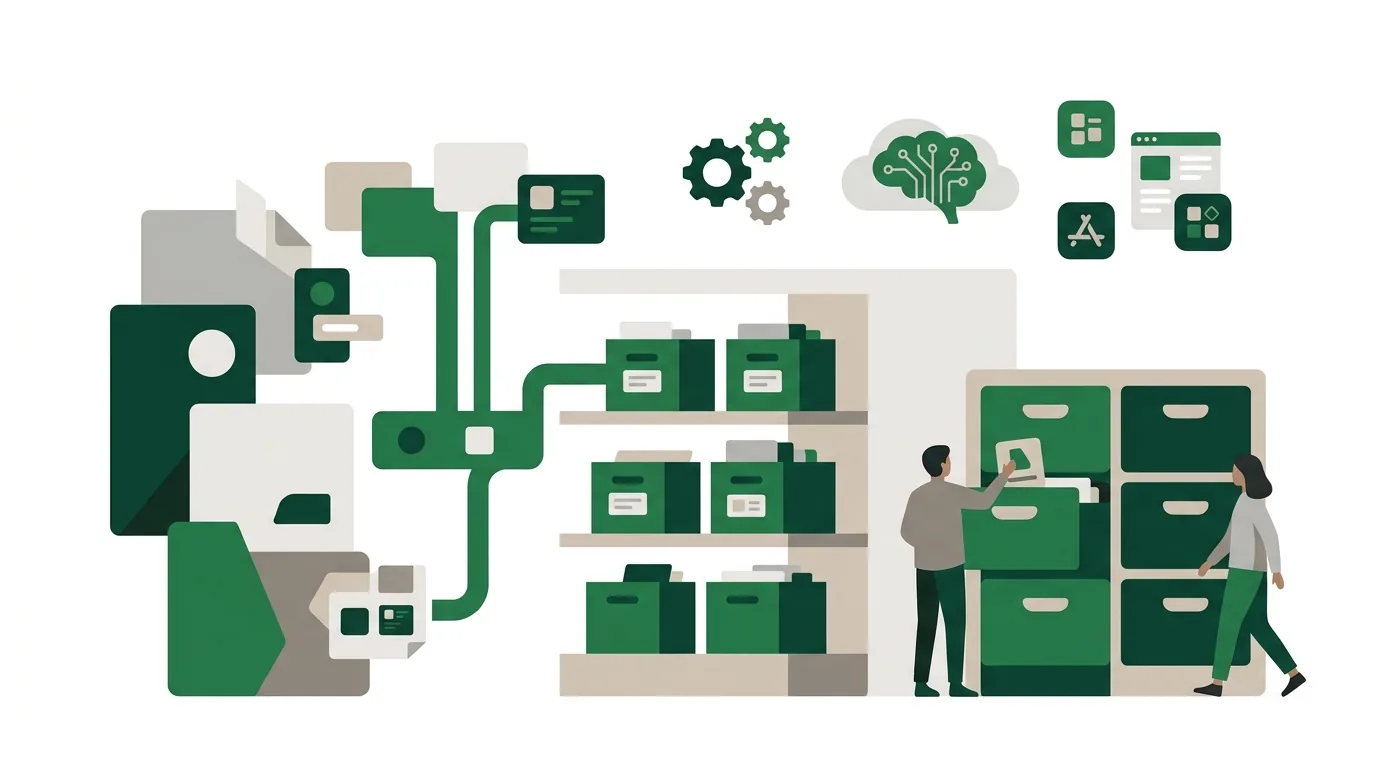
A typical scenario from a mid-sized business, deliberately without a company name: a trading company keeps its customer master data in an Excel list. Orders live in an older inventory management program, and call notes are scattered across Outlook. The goal is a custom back office with CRM, where contact, company and deal belong together. First, we merge the Excel list with the customer master data from the inventory system. It turns out that the same company is spelled differently in the two sources. Matching runs on customer number and postal code, and unclear matches go to the sales team as a list. Next come the orders. Each order keeps its old customer number as a reference so that the assignment still holds after new IDs are issued. We don't migrate the Outlook notes automatically. They have no structure, and a script would assign them to the wrong contacts. Instead, the important notes are transferred by hand and the rest stay in the mailbox. After the trial run, we compare the number of customers, the number of orders and the total of open items. Only when all three figures match is the cutover date set.
Is the built-in import enough, or do you need a migration script?
The built-in CSV import of an off-the-shelf program is enough under three conditions. There is only one source, the records don't reference each other (as with a plain contact list, for example), and the target system produces an error log during import. In that case, a custom script is effort with no payoff. With a few hundred records, manual entry is sometimes even faster than any automation. A script pays off when several sources have to be merged, when orders, line items and customers reference each other, or when the trial run has to be repeated several times. DigifyNow writes migration scripts so they can run as often as needed without creating duplicates. If a record can't be migrated, it lands in a log with the reason instead of silently disappearing. At the end there is a report with the figures from source and target. Already during planning, it should be clear where the migration belongs in the course of a software project, namely before acceptance, not after it. For an MVP, that means the trial migration already runs against the development build and not just against the finished system, so gaps in the data model show up while it can still be changed. A process analysis beforehand also helps. It shows which data is actually still needed in the new workflow.

Frequently asked questions
How long does a data migration take?
The duration depends on the number of sources, the data quality and the links between records, not on the data volume in gigabytes. For small and mid-sized businesses, the actual move often fits into a weekend, between Friday evening and Monday morning. The inventory, mapping, cleanup and trial runs beforehand take considerably longer. A firm date can only be given once the inventory has been taken.
What file format is best for exporting data in a migration?
For flat tables, a CSV file with Unicode encoding and an unambiguous delimiter works well. For nested data such as orders with line items, JSON is a better fit because it represents the hierarchy. An Excel file is risky as an intermediate format, because Excel removes leading zeros and truncates very long numbers, which makes customer and item numbers useless.
Can the old system be deleted after the data migration?
With tax-relevant data, usually not right away. The German Fiscal Code sets multi-year retention periods depending on the document, which only begin at the end of the year the document was created, and the GoBD require the data to remain machine-readable and analyzable. The usual approach is to keep the legacy system in read-only mode or to export the data to an archive that can still be analyzed. Which period applies to you is something to clarify with your tax advisor.